Respond to a risky sign-in
A workflow can start by itself when something happens in your company. In this guide Ann makes one for risky sign-ins. If the sign-in came from a new country, the person is signed out and told why. For any other risky sign-in, the person is only told.
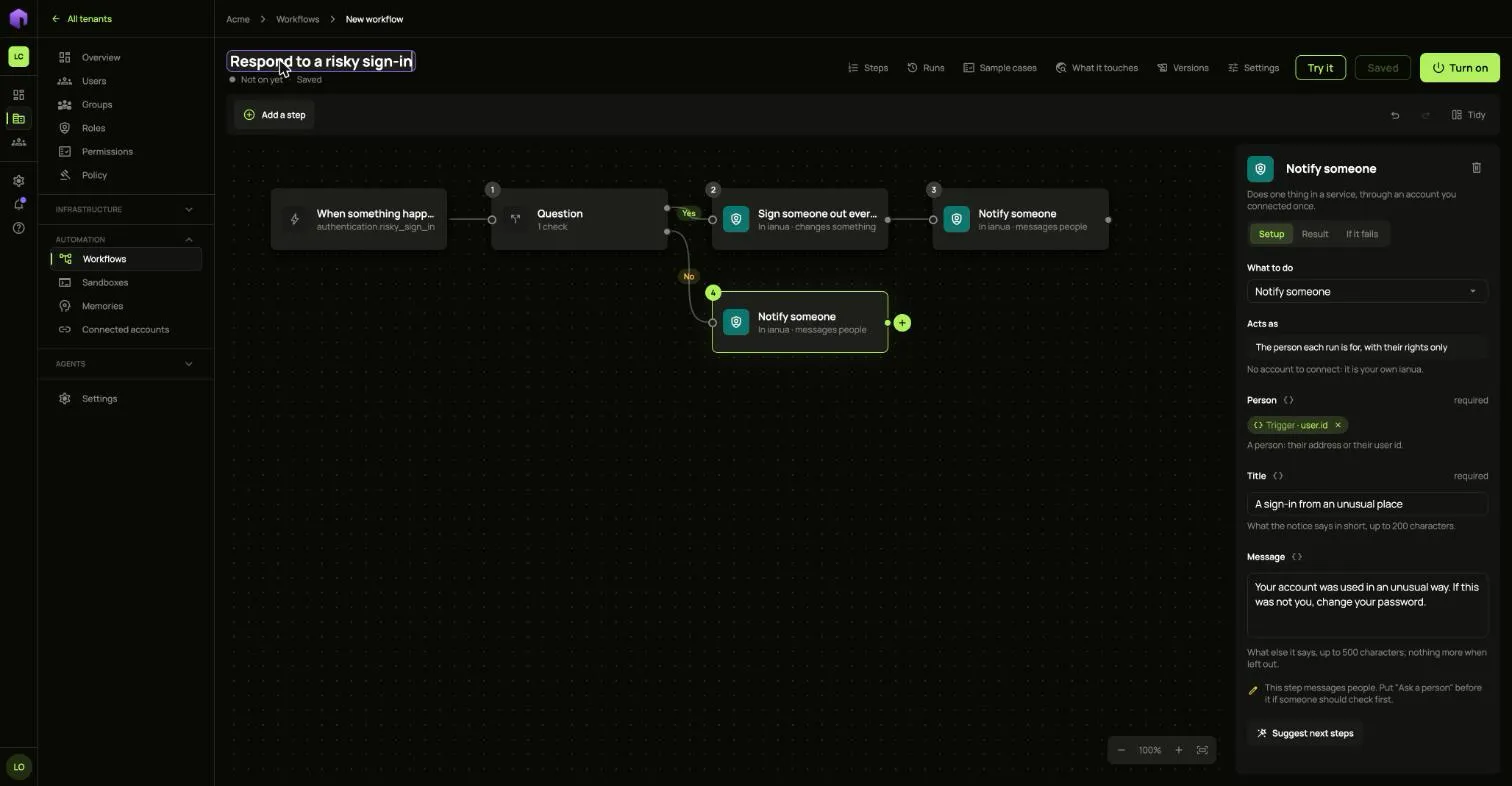
1. Choose what starts it
Section titled “1. Choose what starts it”- Open Workflows and choose New workflow. Name it
Respond to a risky sign-in. - On the right, under Starts, choose When something happens in your company.
- Under Event, choose A sign-in went ahead though it looked risky.
A workflow can also start on a schedule, when a connected service sends an event, when another system calls it, or before a change happens.
A workflow started by an event acts for the person who turned it on, so that person needs the rights its steps use.
2. Ask a question
Section titled “2. Ask a question”- Choose the + after the start and pick Question.
- Choose Pick what to check, type
signunder What started the run, and choose Use. - Keep equals, and type
new_countryas the value.
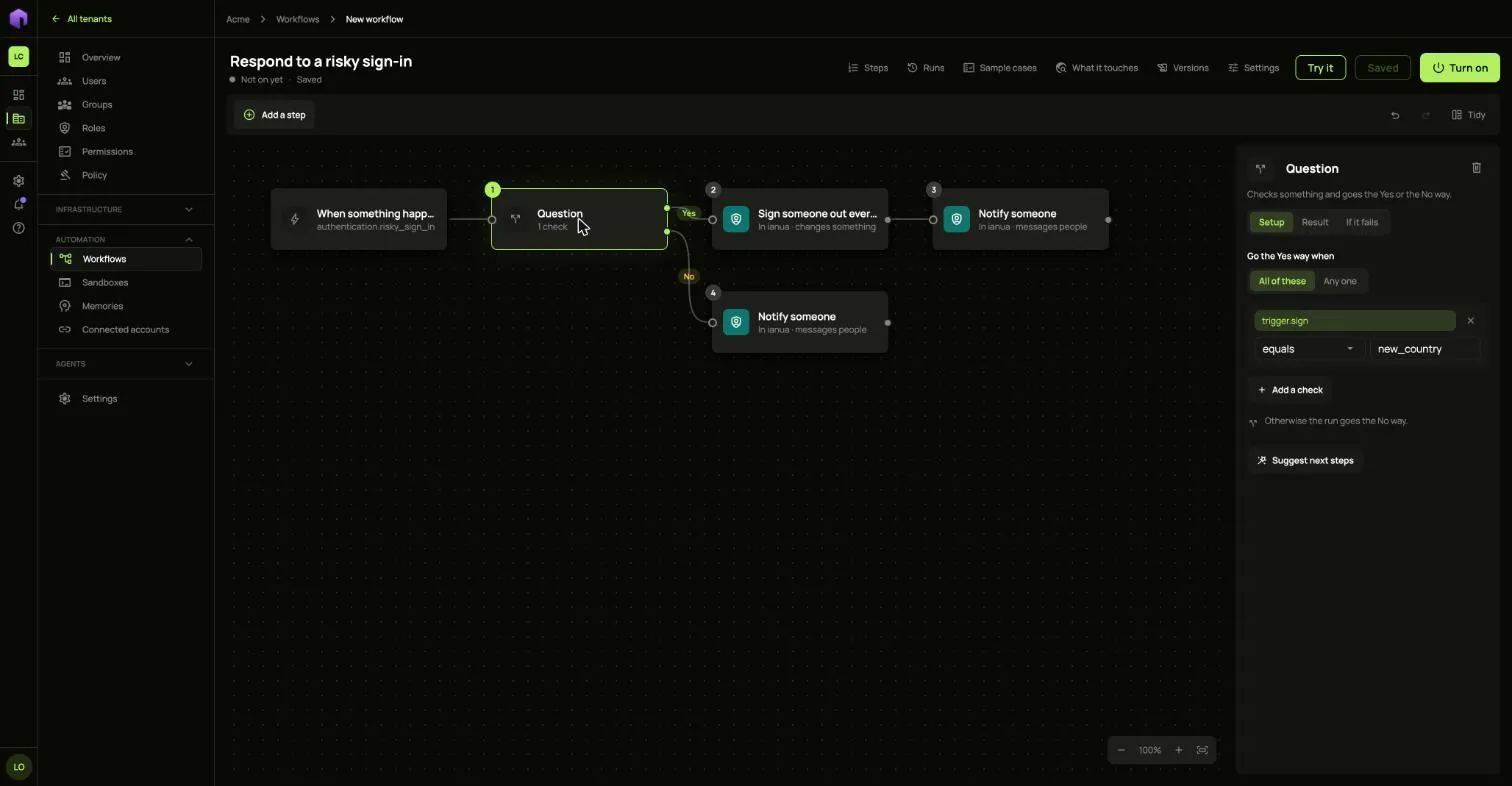
The event gives one of three reasons: new_country, fast_travel or fast_travel_to_new_country. To catch both new-country reasons, choose contains instead of equals.
The step now has two + buttons. The top one is the Yes way and the bottom one is the No way.
3. Build each path
Section titled “3. Build each path”For the Yes way:
- Choose the top + and pick Sign someone out everywhere. Choose
<>beside Person, typeuser.idunder What started the run, and choose Use. - Choose the + after it and pick Notify someone. Set Person the same way, and write a Title and a Message.
For the No way, select Question, choose the remaining +, and add another Notify someone.
Choose Tidy to lay the paths out.
4. Try it
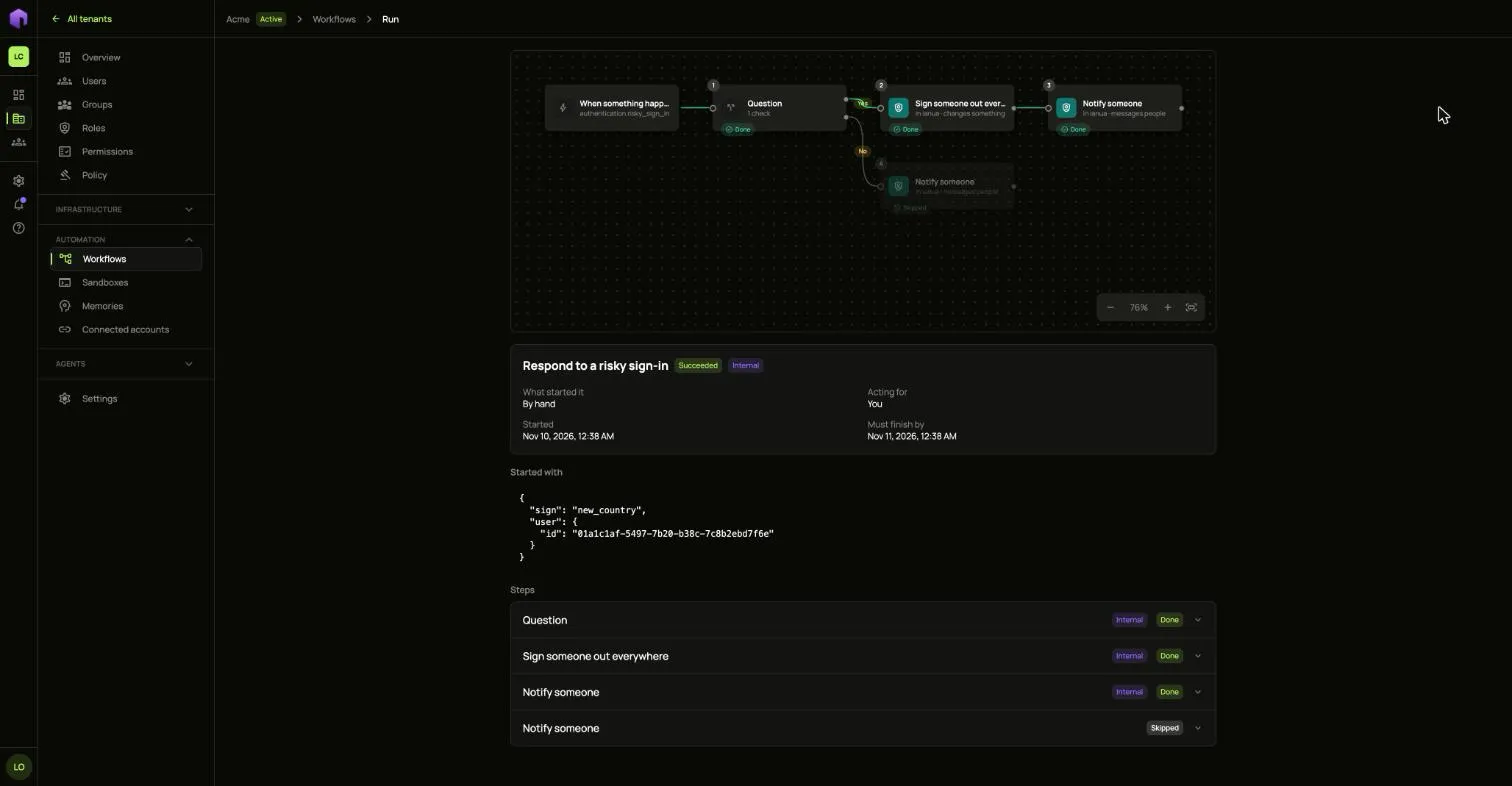
Section titled “4. Try it”Try it runs the saved draft on example data. Nothing outside changes, because steps that would change something stand in. Give the data the event would carry:
{"sign": "new_country", "user": {"id": "01a1c1af-5497-7b20-b38c-7c8b2ebd7f6e"}}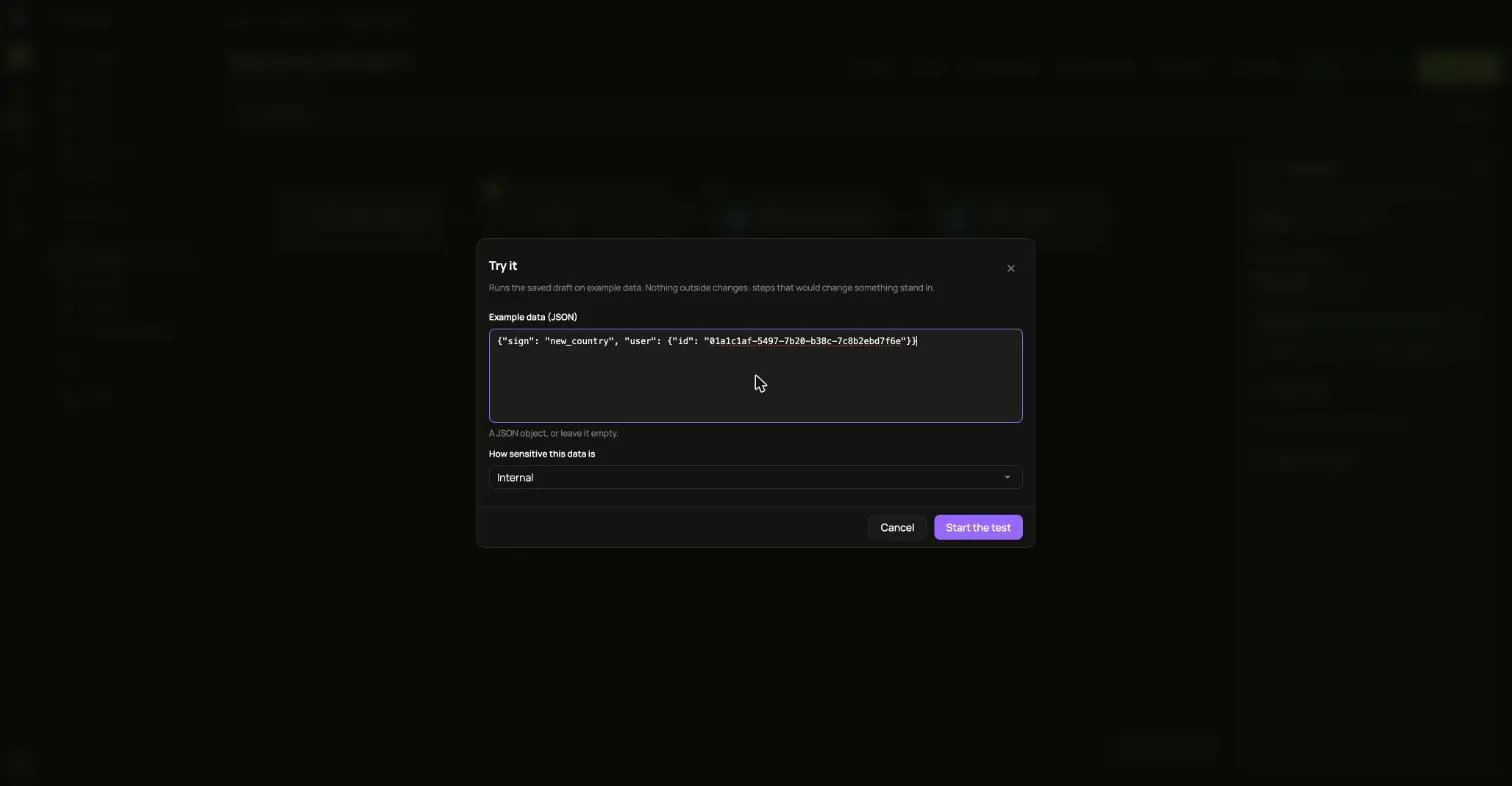
The result shows on the steps. Here the Yes way ran, and the No way was skipped.
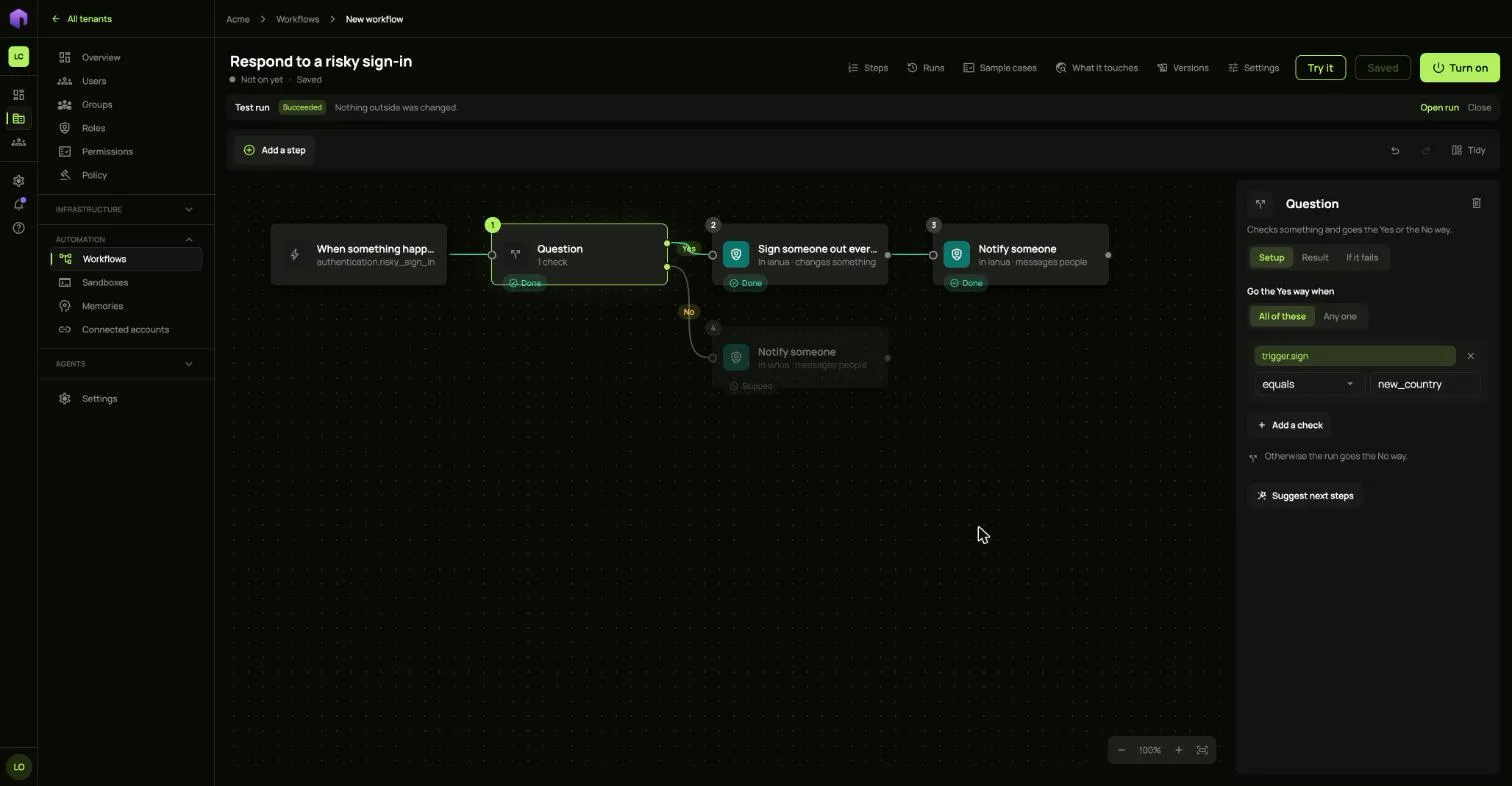
Choose Open run for the full record of each step.
Try the other way too, with "sign" set to something else.
5. Turn it on
Section titled “5. Turn it on”Choose Turn on, check the list of changes, and confirm. From then on, each risky sign-in starts a run, listed under Runs.